
Log in to your cPanel account and follow the steps below to set up your website:
1. Locate the Installer: Scroll down to the Softaculous Apps Installer section.
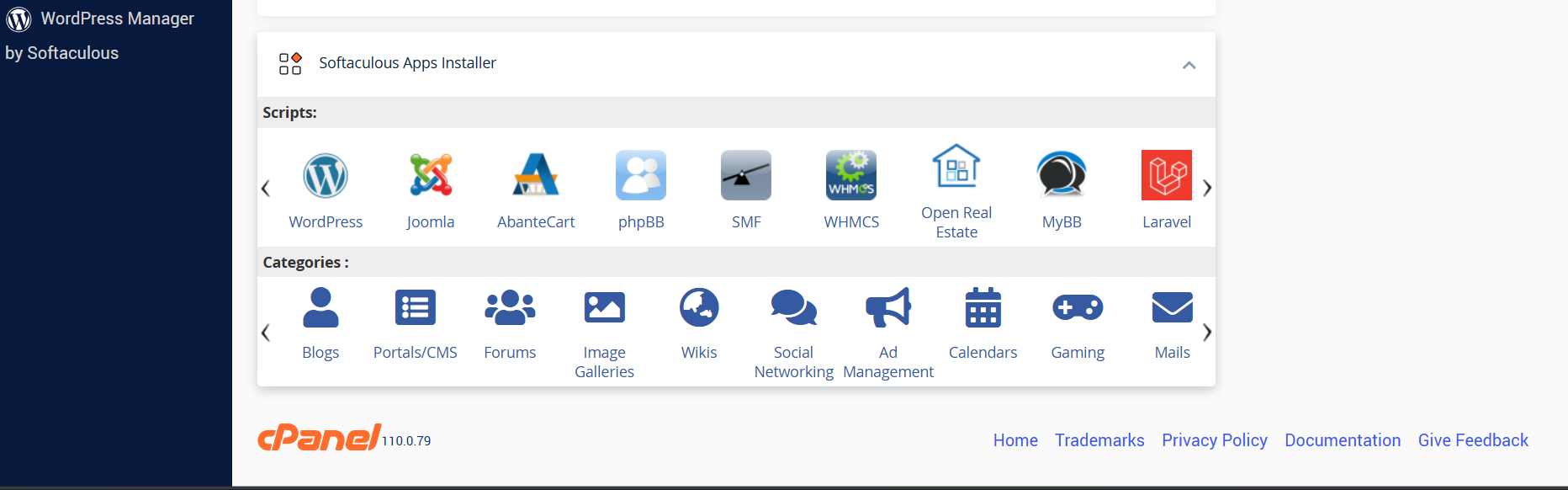
2. Select WordPress: Click on the WordPress icon.
3. Start Installation: Click the Install Now button.
4. Software Setup:
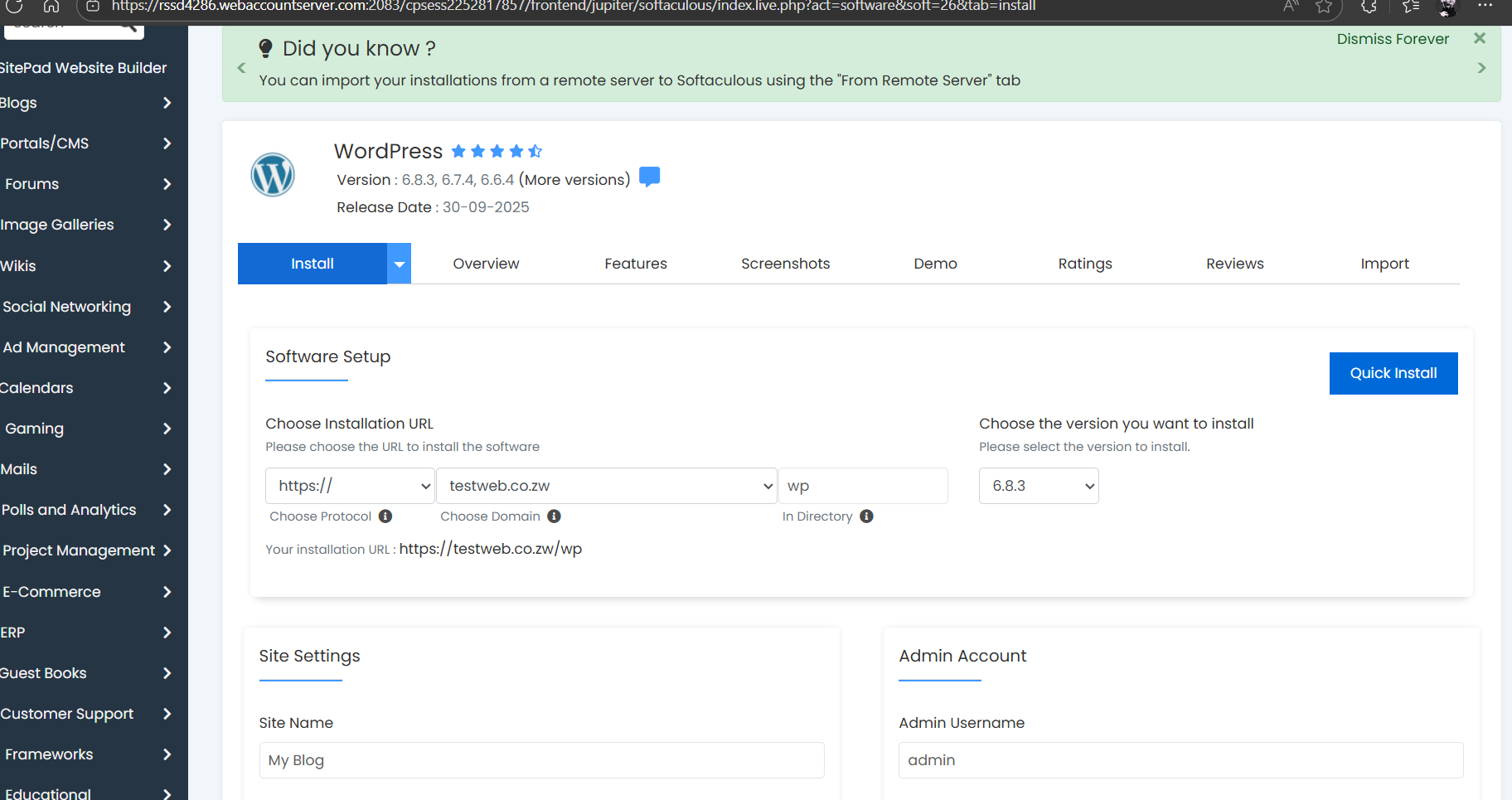
- Choose Protocol: Change http:// to https://.
- In Directory: By default, this field often says "wp". Important: Delete "wp" and leave this field blank so your site installs directly on your domain (e.g., yourdomain.co.zw).
5. Admin Account:
- Admin Username: Enter a new, secure username.
- Admin Password: Generate or enter a strong password for your WordPress dashboard.
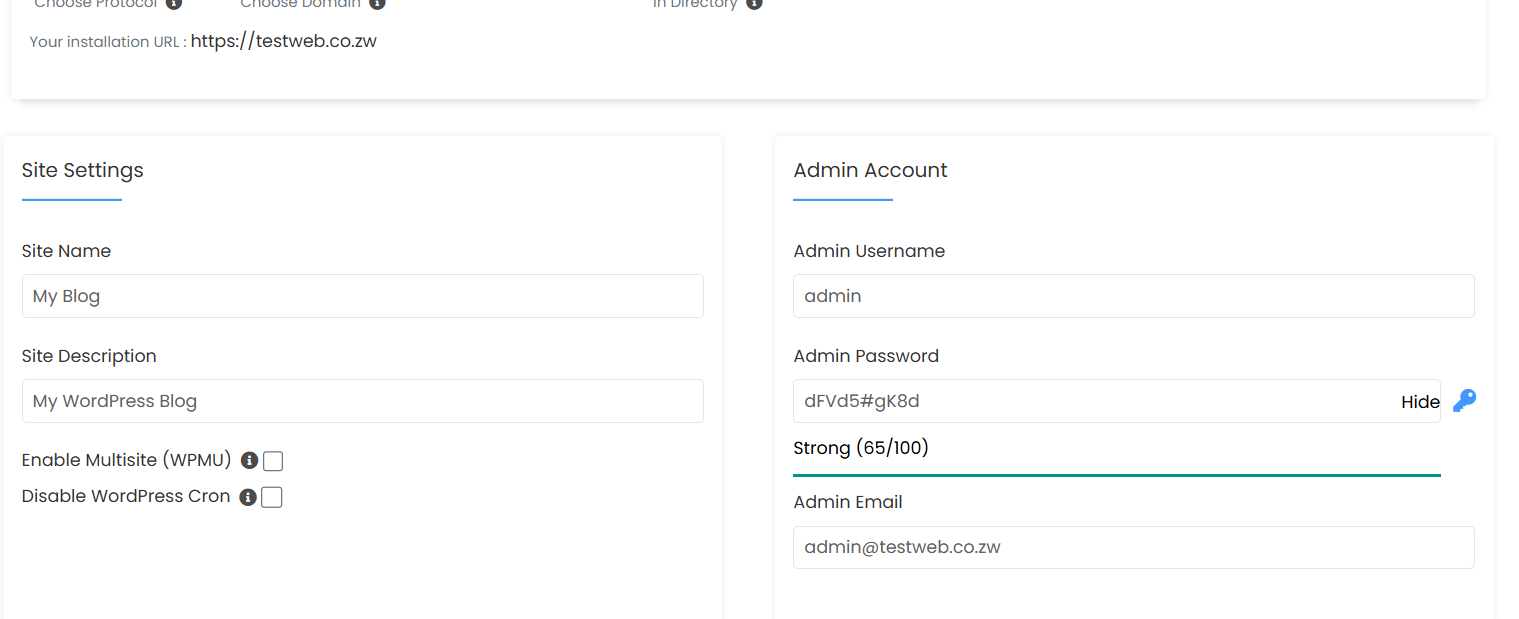
Untick all pug-ins here
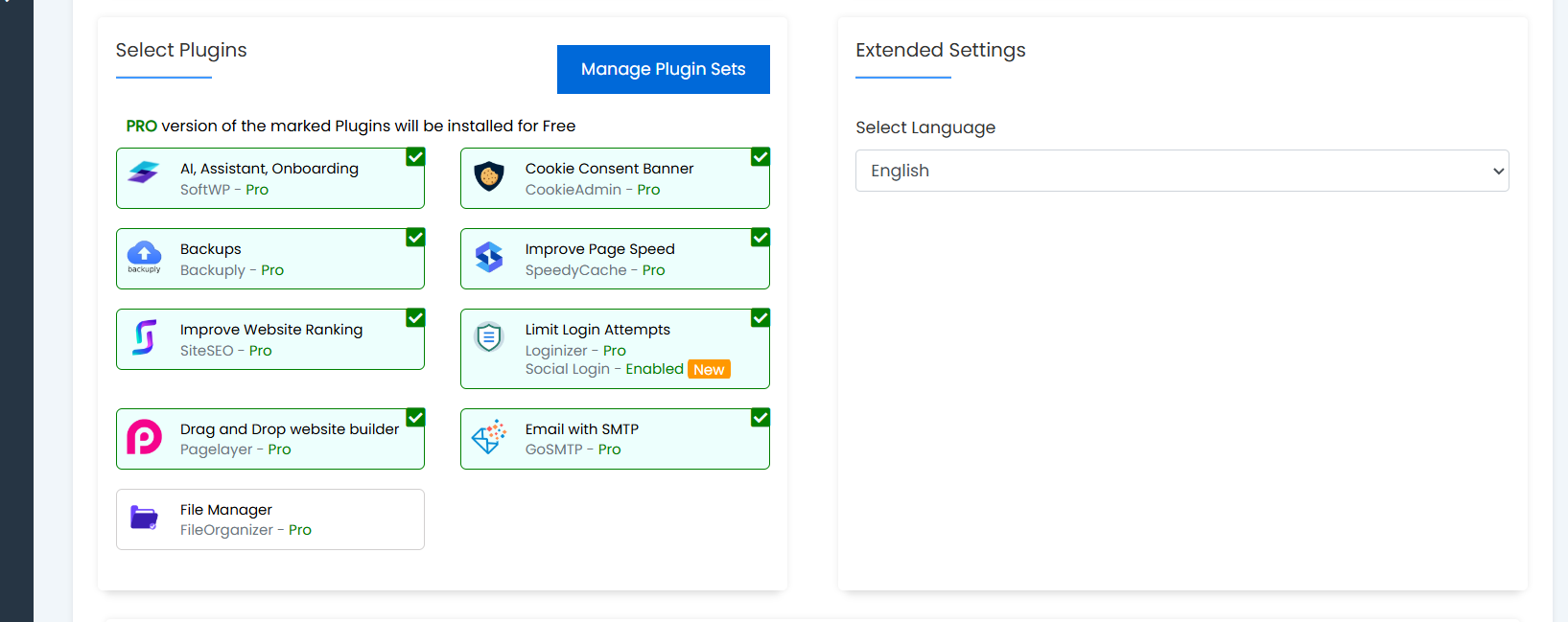
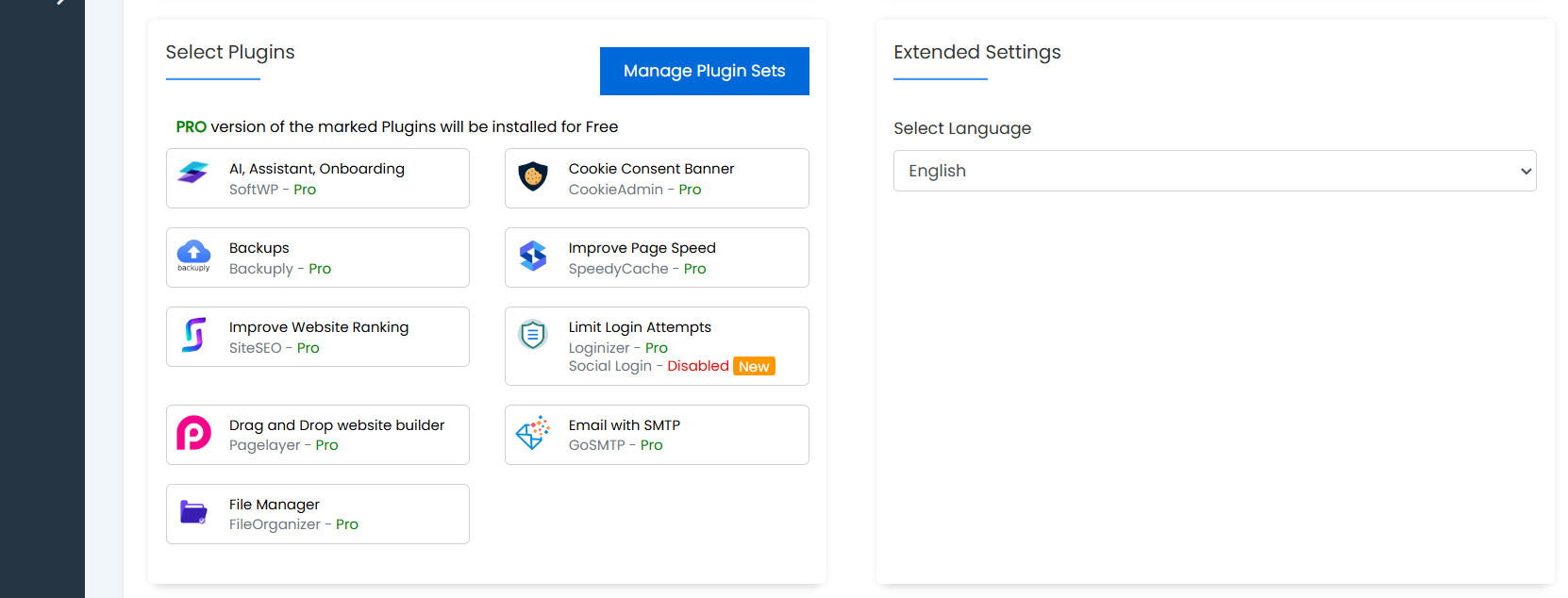
BEFORE AFTER
6. Select the Advanced option and follow the instructions below
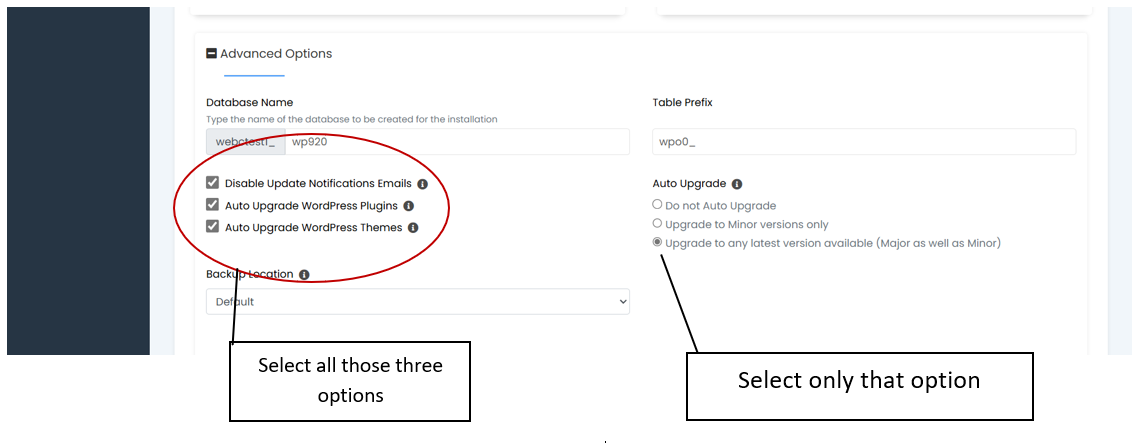
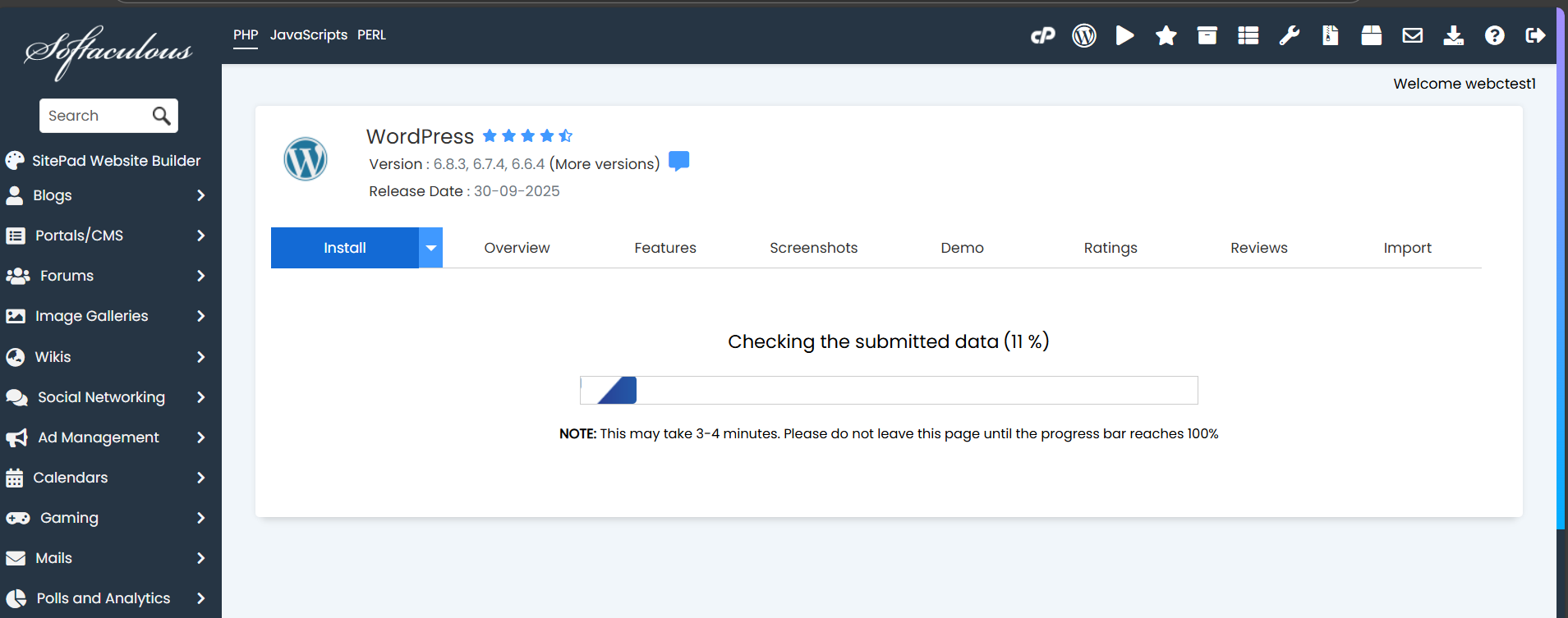
7. Click Install afterwards and wait whilst it installs.
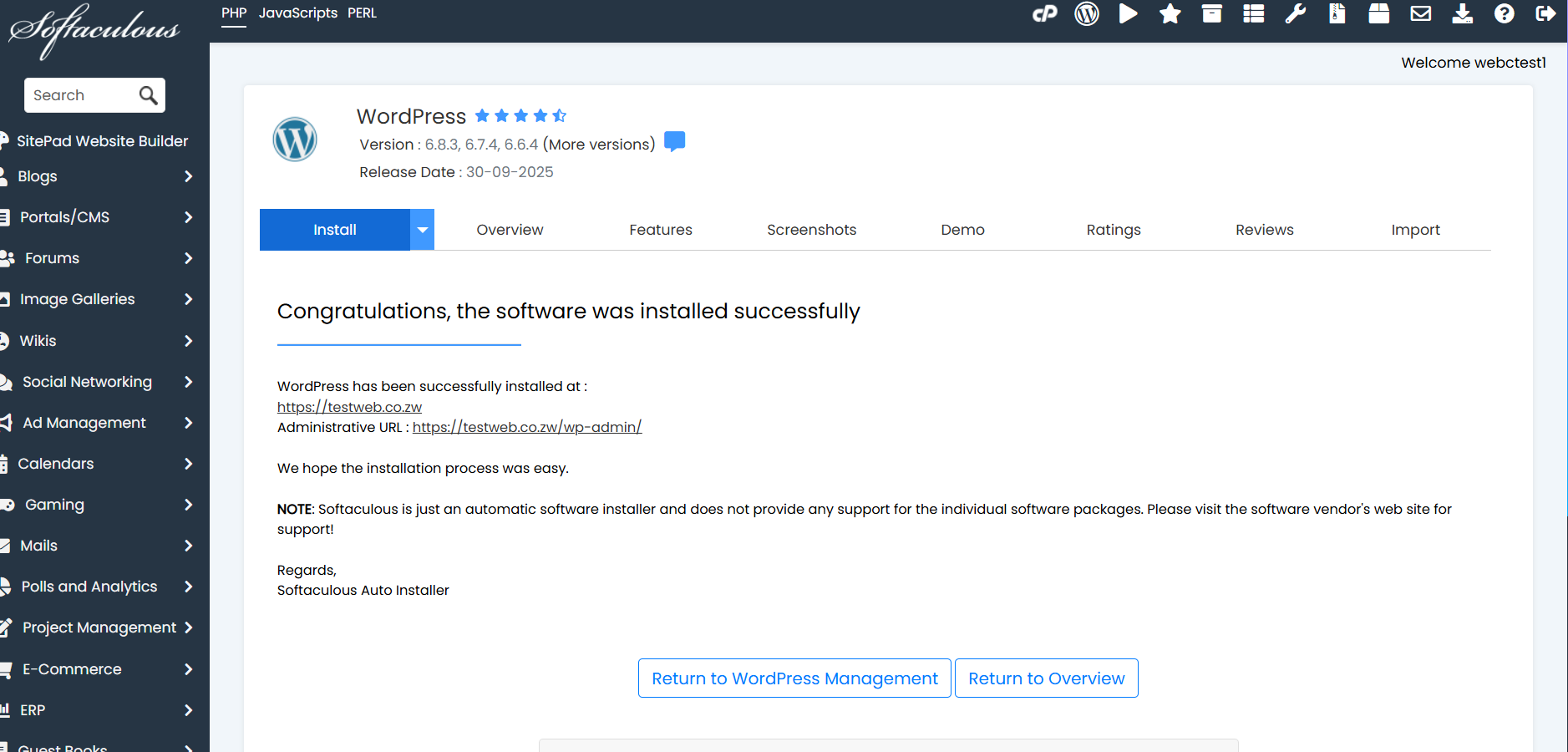
- After installation is complete, you can access your website management dashboard at the Administrative URL shown in your setup summary:
https://yourdomain.co.zw/wp-admin
(Note: Replace yourdomain.co.zw with your actual domain name).
Log in using the Admin Username and Password you created in the previous step to begin building your website.
